

 QTP Arena
Setup guide · download
Set up Copy Tradefor Tradovate.
Install from the Chrome Web Store, then set up Lead, Follow or Group, check every account’s copy rule in Dry run, and switch to Live when it looks right.

Prefer video?
Complete setup: Lead, Follow, Group, sizing and the kill switch
Filmed on the real extension with demo accounts. More on the tutorials page.
Requirements
What you need
Google Chrome on a computer
Desktop Chrome on Windows, macOS or Linux. Other Chromium browsers such as Brave and Edge also run it.
Tradovate web trader
trader.tradovate.com, one Chrome tab per Tradovate login. Not Tradovate’s desktop or mobile apps.
Demo-environment sessions for Live
Live copying works on Tradovate demo sessions, which include simulation and most prop firm evaluation and sim-funded accounts. Dry run works everywhere.
Tabs stay open and awake
Add trader.tradovate.com to chrome://settings/performance → “Always keep these sites active”. The side panel itself can be closed.
Step 1
Install and open the side panel
Open the Chrome Web Store listing and click Add to Chrome. Chrome keeps it updated for you.
Click the puzzle-piece icon in the toolbar and pin Copy Trade for Tradovate.
Open trader.tradovate.com and log in. If the tab was already open, reload it (F5).
Click the extension icon to open its side panel for that tab, then create your Copy Trade account (your 8 free days start at first sign-in).
In Chrome, go to chrome://settings/performance → “Always keep these sites active” → add trader.tradovate.com.
For several logins, open each one by typing trader.tradovate.com into a NEW tab. “Duplicate tab” copies the current login instead.
Step 2a · the account you trade
Lead: broadcast your trades
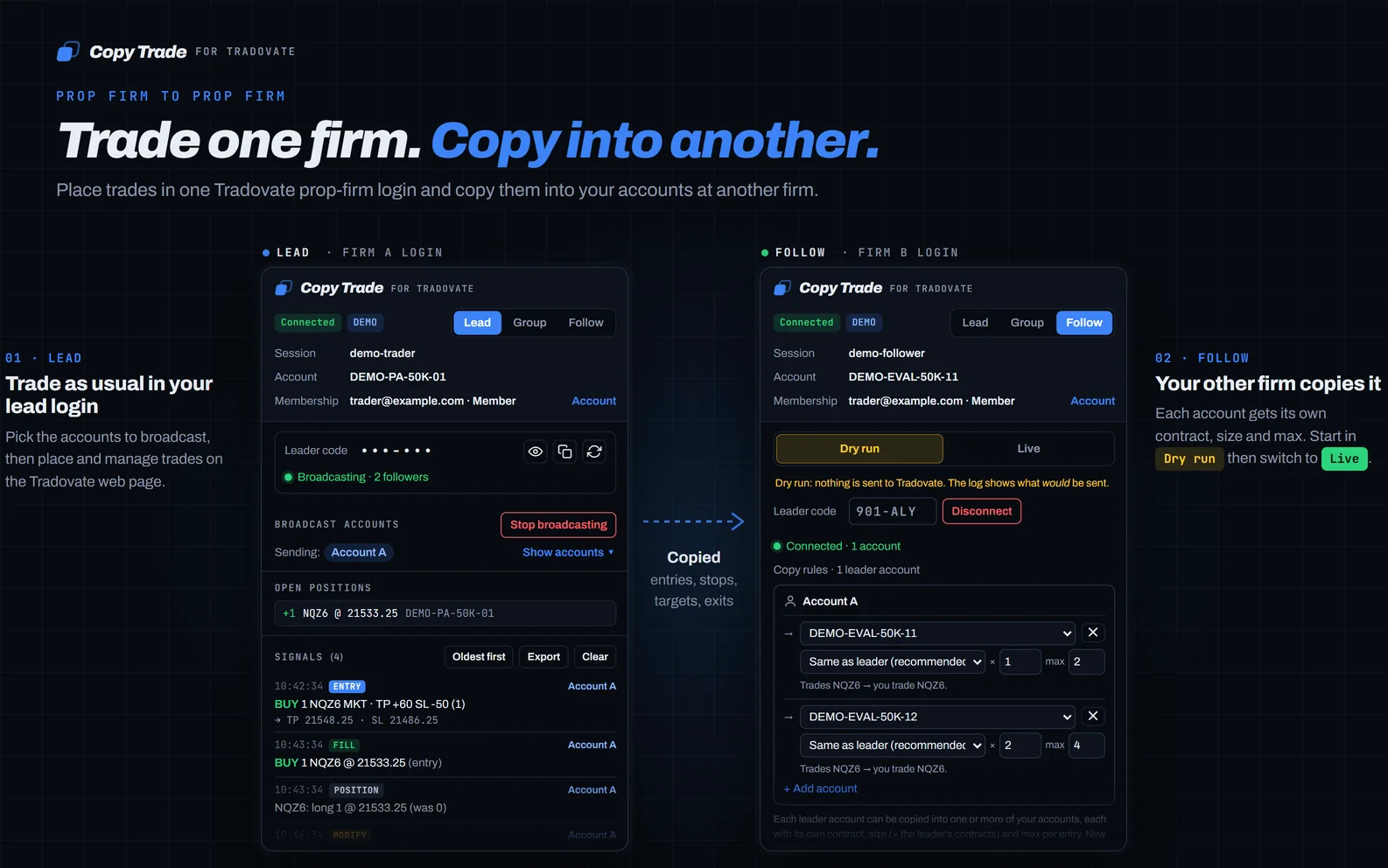
Side panel → Lead.
Under Broadcast accounts, tick the accounts to share and rename them if you like (followers see only these names, never account numbers).
Click Start broadcasting. The panel shows “Broadcasting · N followers”.
Share your leader code (eye icon to reveal, copy icon to copy).
Trade as usual in the Tradovate web trader. The tab title shows ▲ LEAD ON.
Regenerating the code disconnects everyone using the old code (use it to stop someone following you).
 Demo accounts · simulated prices
Step 2b · your other logins
Follow: copy into your accounts
In the follower tab’s side panel, choose Follow.
Enter the leader’s code and click Connect.
For each leader account, click “Copy into…” and pick your account (more with “+ Add account”).
Check each rule’s Trade (the contract your orders use), × size and Max.
Good first test: the leader places a limit order far from the market; check it appears with stop and target, then move the stop and cancel it.
Watch at least one full trade in Dry run, then switch to Live and confirm. The tab title shows ▼ FOLLOW LIVE.
Same login
Group: copy inside one Tradovate login
One login is either a leader or a follower. Group can run together with Lead, but not with Follow, and a login can’t follow its own leader code.
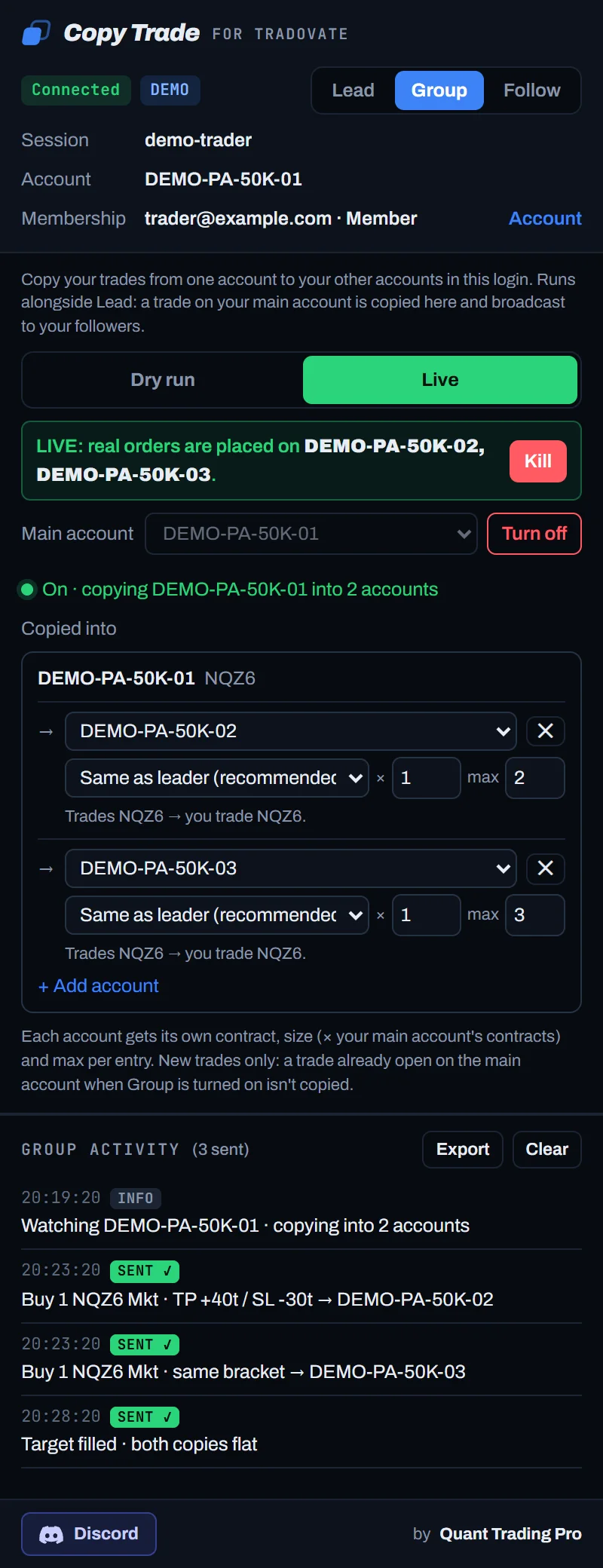
Side panel → Group.
Pick your main account (the one you trade on) and turn Group on.
Add the accounts to copy into, each with Trade, × and Max.
Use Dry run first, then switch to Live. The main account can never be a target, and a trade already open when Group is turned on isn’t copied.
 Demo accounts · simulated prices
Settings explained
Copy rules, modes and the log
- Trade
- The contract your copies use. “Same as leader (recommended)” is the default; the micro/mini twin (e.g. MNQ ↔ NQ) copies stops and targets at the same prices, with a warning if the size doesn’t make up for the contract difference.
- × (size)
- Multiplies the leader’s contracts, from ×0.1 to ×20, always at least 1 contract.
- Max
- The most contracts placed for any single entry (default 5). Larger entries are capped.
- Locked while open
- The account, Trade and × are locked while that rule’s copied trade is open (“Locked until this trade is closed”).
- Dry run (default)
- Logs what would be sent, without placing orders.
- Live
- Places real orders on your account through your own Tradovate session, after a confirm that names the accounts and the contract cap.
- Kill
- Cancels every working order and flattens every position on the copied-into accounts, then switches back to Dry run.
- Activity log
- Each order shows “would send”, “sent ✓” (with timing) or “failed ✗” (with Tradovate’s reason). Click a row for details; Export and Clear are there too.
Live mode rules
How Live behaves
- Live can be turned on only when the session is a Tradovate demo-environment session, you’re connected to a leader (or Group is on), and an account to copy into is picked.
- Each order is sent at most once: if something fails mid-send, an order is missed rather than doubled.
- A quick refresh (tab back within 2 minutes) keeps Live and catches up on anything missed.
- A browser restart, a longer reload, a sleeping tab or a lost session switches Follow back to Dry run. Exits for trades opened in Live are still copied; the Follow tab offers Resume Live or Flatten now.
- When the leader goes flat, the follower closes its whole position in that product on that account, including any position you opened there by hand.
Manual install
Store or download?
The Chrome Web Store version is quickest and updates itself. If you were given a .zip build (for example a test version), install it like this, and use one or the other, never both: two copies running on the same Tradovate tab would copy every trade twice.
1. Unzip the download
Right-click the zip and choose Extract All (Windows) or double-click it (Mac). Keep the folder somewhere permanent, such as Documents: Chrome loads the extension from it.
2. Open the extensions page
Type chrome://extensions in the address bar. In Brave it’s brave://extensions, in Edge edge://extensions.

3. Developer mode, then “Load unpacked”
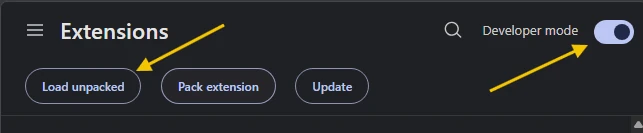
Flip the Developer mode switch (top right). Click Load unpacked and select the unzipped folder, the one that contains manifest.json.
4. Pin it and open Tradovate
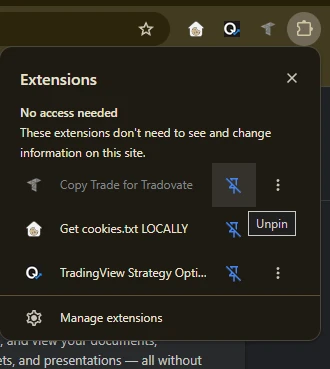
Pin Copy Trade for Tradovate from the puzzle-piece menu, open trader.tradovate.com and click the icon to open the side panel.
Updating a manual install: unzip the new version over the old folder, then press reload (↻) on chrome://extensions. Don’t remove the extension to update it: removing it deletes its saved settings. Switching to the store version later? Remove the manual copy first and enter your leader code again.
Troubleshooting
Fixes for every common message
Panel says “Reload this Tradovate tab to connect it to the extension.” or shows nothing
- Press F5 on the Tradovate tab. Tabs opened before installing or updating the extension must be reloaded.
“This login is already running in another tab.” / tab title shows ⧉ DUPLICATE
- Close the duplicate tab; only the first one leads or follows.
- Open other logins by typing trader.tradovate.com into a new tab, not with “Duplicate tab”.
Live switch greyed out
- “Live copying is only allowed on demo sessions for now”: the login is a live (real-money) session.
- “Connect to a leader first” / “Pick an account to copy into first” / “Turn Group on first”: finish that step.
- Trial over? Live needs the membership; Dry run keeps working.
Follower went back to Dry run
- Normal after a browser restart, a reload over 2 minutes, a sleeping tab or a lost session.
- Check your positions in Tradovate, then press Resume Live.
“Leader is already long/short …: not joining.”
- You connected mid-trade. The next trade after the leader is flat will be copied.
“… arrived Ns late: not entering.”
- The signal was over 30 seconds late. Sync both computers’ clocks (Windows: Settings → Time → Sync now), keep Tradovate tabs awake and the internet stable.
“… you trade X, a different market, so only market entries without a stop/target are copied.”
- Set Trade to “Same as leader” or the matching micro/mini contract.
“Unknown leader code” / “The leader changed their code”
- Re-check the code with the leader, or get the new one and connect again.
- “Too many wrong codes from this network”: wait 10 minutes.
Leader’s trades aren’t copied but exits are
- The leader is entering outside the Tradovate web interface (Hotkey Trader, phone or desktop app, TradingView). Only web-interface entries are copied.
“sent ✓” but no order in Tradovate
- Check Tradovate’s orders and positions directly; Tradovate may have limited request rates. Avoid placing many orders in a burst.
Kill or flatten seems to miss a position
- Check Tradovate’s positions directly and flatten by hand if anything remains, then report it with the exported Activity log in a support ticket.
Reporting a problem? Export the Activity log (Export button) and attach it in a support ticket, not in public. Never post account numbers, passwords or session tokens.
Support
Still stuck?
Ask in Discord
Fastest help: post in #troubleshooting-issues, or open a private support ticket in #support-ticket. Product updates land in #updates.
Join the Discord →Setup guide & troubleshooting
Install steps, requirements and fixes for the messages Copy Trade can show.
Open the setup guide →FAQ
Plans, trials, accounts, prop firm rules and how the safety features work.
Read the FAQ →Email support
Account or billing question you’d rather not post? Write to support@qtppro.com.
support@qtppro.com →
Risk disclosure. Futures trading involves substantial risk of loss and isn’t suitable for every investor. Copy trading does not guarantee identical fills, execution times or results. You are responsible for every order placed on your accounts, including orders copied from another trader’s leader code, and for following your broker’s and prop firm’s rules. Copy Trade for Tradovate is a software tool, not a broker or adviser. Not affiliated with Tradovate, NinjaTrader or any prop firm. Full risk disclosure.