

 QTP Arena
Hotkey Trader Remote · included with Pro and Pro+
Your pad,in your pocket.
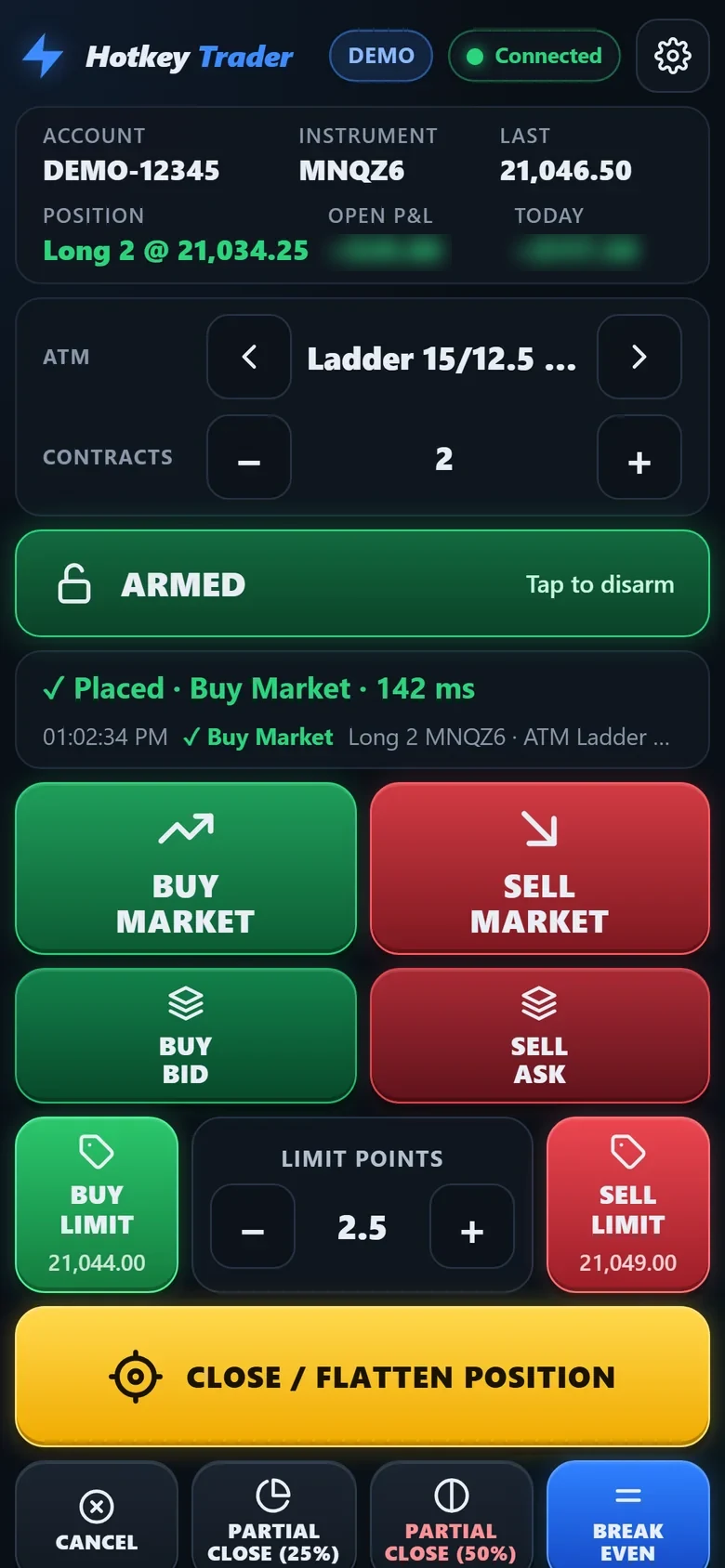
Hotkey Trader Remote turns your phone into a wireless keypad for the pad running in Tradovate on your PC. The same programmed buttons, one tap away on your phone, while your charts stay on the big screen.
- iPhone & iPad: add to Home Screen
- Android: Google Play app coming soon
- Free trial included
The only Tradovate add-on we know of that puts your programmed smart buttons on your phone.
How it behaves
A remote for your pad, with your rules.
Your buttons, not a cut-down copy.
Full ATM ladders, Breakout OCO, partial closes that trim the brackets, close and flatten, and copy trading to your other accounts with their ATMs.
Your rules still apply.
Every tap runs through the pad on your PC, so the profit cap, balance lock and max contracts are enforced exactly as they are there.
You approve every phone.
Pair it with a QR code from Settings → Account → Phone remote, then press Allow when your PC asks “Allow this device?”. The keypad opens locked; you hold to arm it.
Live accounts: exits always, entries only if you allow them.
Phone entries on live accounts are off until you switch them on. Close, flatten, cancel and partial close always work.
A remote, not a second platform.
The phone sends your taps to the pad on your PC and doesn’t trade on its own. Your Tradovate login never leaves the computer.
What you’ll need.
A Hotkey Trader plan (Pro, Pro+ or Founders, trial included), your PC on with Tradovate open in Chrome, and an iPhone or iPad (Safari, added to your Home Screen). Android: the Google Play app is coming soon.
Pairing
Pair your phone in a minute
You approve every phone from the PC, and the keypad opens locked until you hold to arm it.
On your PC, open Hotkey Trader → Settings → Account → Phone remote and switch it on.
Scan the QR code with your phone’s camera and open the link.
On iPhone or iPad, tap Share → Add to Home Screen in Safari. On Android, the Hotkey Trader Remote app is coming soon on Google Play.
Back on the PC, press Allow when it asks “Allow this device?”.
Hold to arm the keypad, then tap. Phone entries on live accounts stay off until you allow them in the remote settings.
Phone remote questions
Does the phone need my Tradovate login?
No. The phone only sends your taps to the pad running on your PC. Your Tradovate session never leaves the computer.
What if my PC is off or Tradovate is closed?
Then the remote can’t do anything: it shows that the pad is offline. The PC must be on with the Tradovate tab open in Chrome.
Can someone else control my pad?
Only phones you approve on the PC can connect, and you can revoke a phone at any time in Settings → Account → Phone remote. Unused device links expire after 30 days.
Is it included in my plan?
Yes, with Pro, Pro+ and Founders, during the free trial too.
When is the Android app out?
It’s coming soon on Google Play. iPhone and iPad already work today: open the pairing link in Safari and add it to your Home Screen.
Risk disclosure. Futures trading involves substantial risk of loss and isn’t suitable for every investor. Hotkey Trader is a software tool, not a broker or adviser, and gives no trading advice. Screens show demo accounts with simulated prices; nothing here is a promise of results. Not affiliated with Tradovate or NinjaTrader. Full risk disclosure.