

 QTP Arena
Setup guide
Set up Hotkey Traderin about five minutes.
From install to your first demo trade with a full ATM, then risk rules, copy accounts, shortcuts and the fixes for the messages you might see.

Prefer video?
Tutorial 1: your first smart buttons and ATM bracket
The same steps as this guide, filmed on the real extension with a demo account. More episodes on the tutorials page.
Requirements
What you need
Google Chrome on a computer
Windows, macOS or Linux, Chrome 116 or newer. Chrome’s side panel holds the pad.
Tradovate web trader
trader.tradovate.com in a Chrome tab. Not Tradovate’s desktop or mobile apps, TradingView or NinjaTrader.
A Tradovate login
Demo or live. Many prop firm accounts run on Tradovate; live orders stay blocked until you allow them.
The tab stays open
ATM moves, breakouts, the profit cap, balance lock and copy trading run in your browser while the Tradovate tab is open and the computer is awake.
Step 1
Install and open the pad
Add it to Chrome
Open the Chrome Web Store listing and click Add to Chrome. Chrome keeps it updated for you.
Pin it
Click the puzzle-piece icon in Chrome’s toolbar and pin Hotkey Trader for Tradovate.
Open Tradovate
Go to trader.tradovate.com and sign in. Tab already open? Press F5 so the extension connects to it.
Open the pad
Click the Hotkey Trader icon: the pad opens in Chrome’s side panel next to the Tradovate tab.
Step 2
Your first trade, on demo
Create your account
Settings → Account → create an account (or sign in). Start the 8-day free trial on Pro or Pro+ from there, so the plan lands on that account.
Take the tour
A one-minute guided tour is offered the first time. It never places orders, and you can replay it from Settings.
Pick instrument, contracts and an ATM
Choose the contract (e.g. MNQ), how many contracts, and an ATM preset or your own from Settings → ATM Strategies.
Practice on demo
Hover an entry button to preview entry, targets and stop, then tap. Watch the ATM card move the stop as price runs.
Set your risk rules
Turn on the profit cap and balance lock with amounts for prop accounts, and set the max contracts per order in Settings → Safety.
Go live on purpose
Orders on LIVE sessions are blocked until you turn on “Allow live trading” in Settings. Only do it once the setup behaves the way you expect on demo.
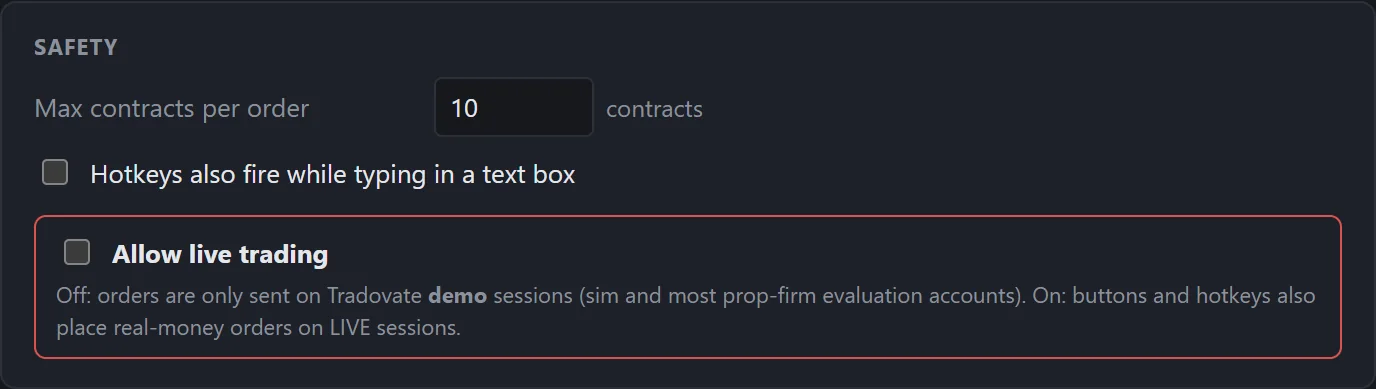 Settings · Safety
Step 3 · optional
Copy to your other accounts
Same login
Copy trading in Hotkey Trader works between accounts on the same Tradovate login (for other logins and prop firms, see Copy Trade for Tradovate).
Tick the accounts
Open the Copy pop-up on the pad, tick the follower accounts and switch Copy on.
Every button copies
Each follower gets its own order and its own ATM. Pro copies to 1 follower, Pro+ to up to 10; extra ticked accounts show “NOT copied”.
Many prop firms restrict copy trading. Check your firm’s rules first; fills can differ between accounts.
Step 4 · optional
Keyboard shortcuts
Arm before you press
Keyboard shortcuts only work while Arm is on in the panel, so a stray key can’t place an order.
Remap
Settings → Hotkeys lists 25 actions; record your own key for any of them. Browser shortcuts like Ctrl+W are protected.
One press, one order
Holding a key down never fires twice, and the per-order contract cap applies to shortcuts too.
Step 5 · optional
Pair the phone remote
Settings → Account → Phone remote: scan the QR code with your phone, then press Allow on the PC.
Keep the Tradovate tab open
The first stop and targets of an ATM entry go to Tradovate as one bracket order and stay on Tradovate’s servers. Every move after that (break-even, lock, trail), breakout brackets, the profit cap, the balance lock and copy trading run in your browser, so they only work while the Tradovate tab is open and the computer is awake and online. Tip: add trader.tradovate.com to chrome://settings/performance → “Always keep these sites active”.
Troubleshooting
Fixes for common messages
A button does nothing, or the panel says “Refresh your Tradovate tab (F5)”
- Open chrome://extensions and press the reload arrow on Hotkey Trader.
- Press F5 on every open Tradovate tab (tabs opened before an install or update must be reloaded).
- Try again; still stuck? Settings → Help → Report a problem.
Keys greyed out, “No active plan”
- Start the 8-day trial or pick a plan on this page.
- Already paid? Sign in with your checkout email, then Settings → Account → Check again.
Orders are blocked on a live account
- That’s the safety default. Turn on “Allow live trading” in Settings once you’ve tested on demo.
Copy shows “NOT copied” on an account
- Pro copies to 1 follower, Pro+ to up to 10; extra ticked accounts are skipped.
- Copy accounts must be on the same Tradovate login.
Live-Fit shows a lock
- Live-Fit ATM is part of Pro+ and Founders.
Balance lock shows “NOT ACTIVE” in red
- A switch is on without an amount. Type the amount (it saves as you type) or switch it off.
- Check the account the lock watches matches the account you trade (the pad offers a one-click fix).
Can’t sign in or forgot your password
- Use “Forgot password?” on the sign-in screen; the reset email comes from Hotkey Trader.
Something else looks wrong
- Settings → Help → Report a problem sends the log to the developers privately (never paste logs in public).
- Ask in our Discord #troubleshooting-issues or open a support ticket.
Watch the troubleshooting episode on the tutorials page, or ask in our Discord.
Support
Still stuck?
Ask in Discord
Fastest help: post in #troubleshooting-issues, or open a private support ticket in #support-ticket. Product updates land in #updates.
Join the Discord →Setup guide & troubleshooting
Install steps, requirements and fixes for the messages Hotkey Trader can show.
Open the setup guide →FAQ
Plans, trials, accounts, prop firm rules and how the safety features work.
Read the FAQ →Email support
Account or billing question you’d rather not post? Write to support@qtppro.com.
support@qtppro.com →
Risk disclosure. Futures trading involves substantial risk of loss and isn’t suitable for every investor. Hotkey Trader is a software tool, not a broker or adviser, and gives no trading advice. Screens show demo accounts with simulated prices; nothing here is a promise of results. Not affiliated with Tradovate or NinjaTrader. Full risk disclosure.